What this covers: Reprinting/downloading your UPSRTC e-ticket from the official यूपीएसआरटीसी ऑनलाइन आरक्षण portal and from the यूपी-RAAHI mobile app. The reservation portal includes a dedicated option for "Reprint Booked eTicket."
टिप: Labels on the portal can vary slightly (it’s a single-page app). If you see "Print/Retrieve/Manage Ticket," you’re in the right place.
TL;DR (30 seconds)
- Go to the यूपीएसआरटीसी ऑनलाइन आरक्षण portal → open Reprint/Print Ticket → enter your पीएनआर/बुकिंग आईडी + मोबाइल/ईमेल → verify OTP (if asked) → Download/Print the PDF.
- Prefer mobile? In यूपी-RAAHI, open मेरा टिकट → select your trip → View/Download. The official app supports booking and managing tickets.
Before you start
- Keep your Booking ID/PNR handy (from SMS/email).
- उपयोग same mobile number or email you used while booking.
- If you booked on a partner (redBus/Paytm/AbhiBus/MMT), reprint from that partner’s मेरी बुकिंग area.
Reprint UPSRTC e-Ticket on the Official UPSRTC Portal (web)
- Open the reservation portal
- The UPSRTC main site routes bookings to the Online Reservation portal. You can go direct as well on https://onlineupsrtc.co.in/
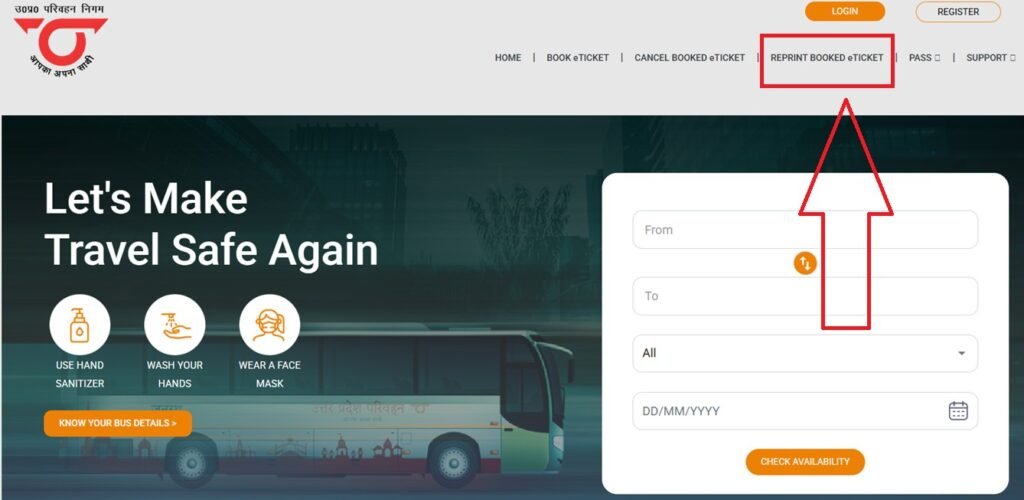
- Find the Reprint option
- Look for "Reprint Booked eTicket" (sometimes grouped under Print/Retrieve/Manage).
- A direct route may open a login/reprint screen Or click on https://onlineupsrtc.co.in/#/login/12
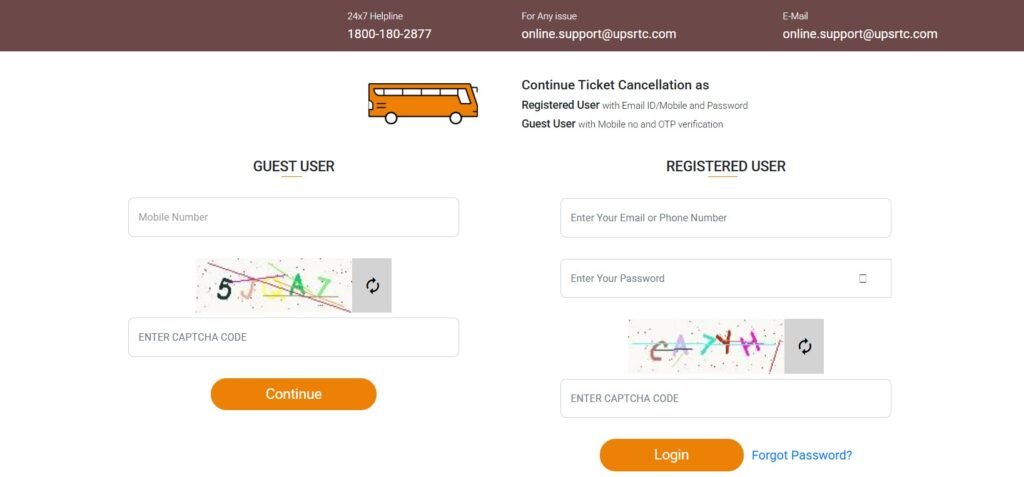
- Enter your ticket details
- पीएनआर/बुकिंग आईडी और मोबाइल नंबर या ईमेल.
- If prompted, complete OTP verification.
- Open your ticket
- The portal shows your e-ticket. Click Download/Print to get a fresh PDF copy.
- Check status
- If you cancelled earlier, the reprinted ticket will reflect the latest status (e.g., partial/full cancel).
Reprint inside the UP-RAAHI App
- Open यूपी-RAAHI and sign in (same mobile/email).
- जाना मेरा टिकट / मेरा बुकिंग.
- Select your journey → tap View/Download (or Share to email yourself the PDF).
- If asked, verify with an OTP and then save/print from your phone.
- The app is the official UPSRTC mobile channel for booking and managing tickets, including cancellations
If your ticket doesn’t show up
- Wrong details: Re-check PNR and make sure you’re using the booking mobile/email.
- Booked via a partner: Open the partner app/site → मेरी बुकिंग → Print/Download there.
- OTP not received: Wait 60 seconds and resend; confirm your number has network/SMS enabled.
- Name mismatch or partial cancel: Use the exact passenger details that appear on the original ticket email/SMS.
UPSRTC Helpline (if you’re stuck)
- UPSRTC Helpline (Toll-free): 1800-180-2877
- WhatsApp: 9415049606
- Email: online.support@upsrtc.com
पूछे जाने वाले प्रश्न
Do I need to log in to reprint?
Not always. The portal typically lets you reprint with PNR + मोबाइल/ईमेल and a one-time OTP.
Can I reprint a cancelled ticket?
Yes—the PDF/receipt reflects the updated status and can be used for records/refunds.
Is the reprint valid for boarding?
Your e-ticket PDF (or SMS with valid ID) is acceptable. Always follow the instructions shown on your reprinted ticket.
संबंधित गाइड
- यूपीएसआरटीसी पीएनआर स्थिति कैसे जांचें
- यूपीएसआरटीसी बस टिकट ऑनलाइन
- अपने UPSRTC खाते में लॉग इन करें
- UP-RAAHI App डाउनलोड करें
श्रेणी:

